Support
Updated: October 16, 2026 · iPhone / iPad
Small photos for your journal, ready to print
Arrange everyday photos on one sheet, save the whole sheet as an image, and open it in your printer’s app. Or use a paper specification to prepare photos at measured sizes and export a PDF. JournalPrint supports iPhone and iPad running iOS or iPadOS 26 or later.
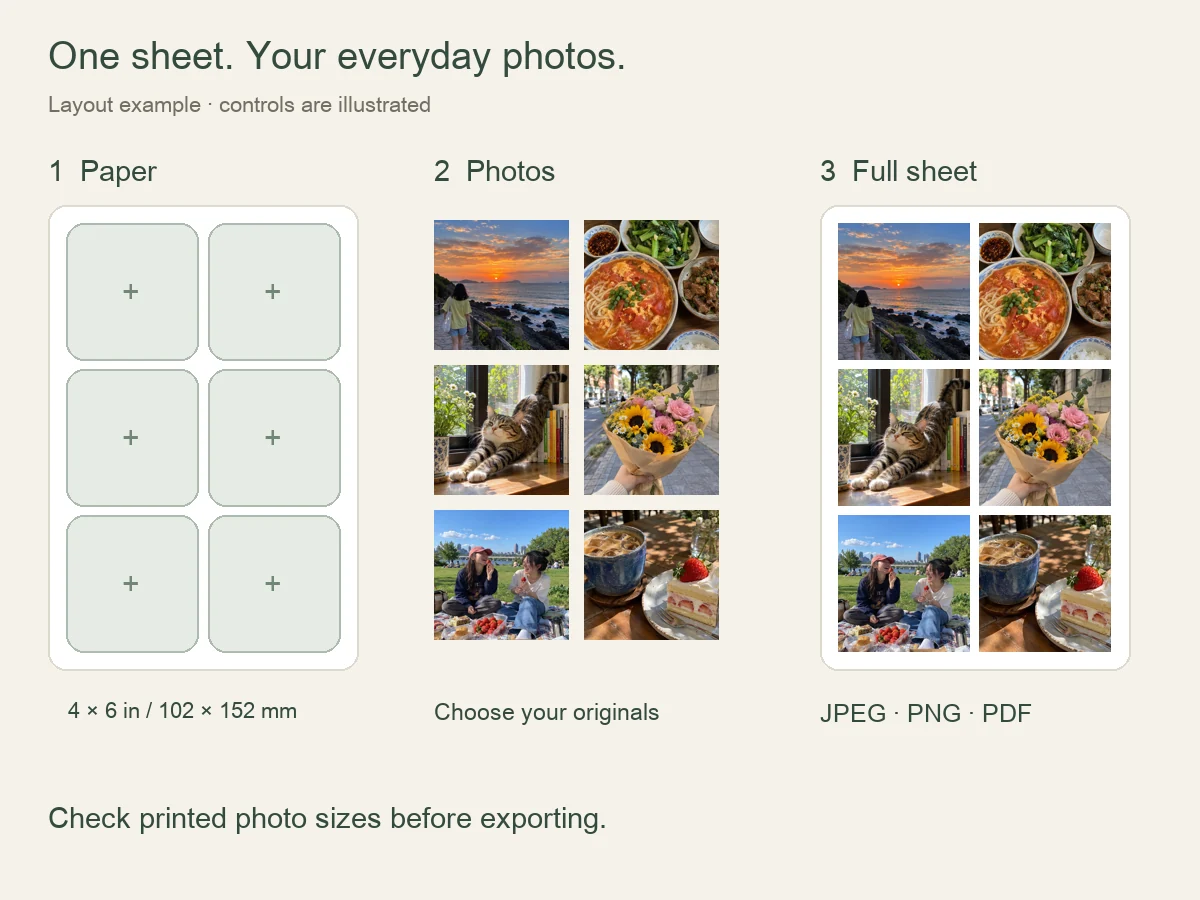
Photo Sheets: from paper to a finished sheet
Open Photo Sheets → Start a Photo Sheet. Choose the paper you actually use, then set the safe area, gap between photos, and photo borders. Import photos from Photos, Files, or your Print Basket. Auto layout gives you a starting arrangement; check each photo’s printed size rather than judging its size on the screen.
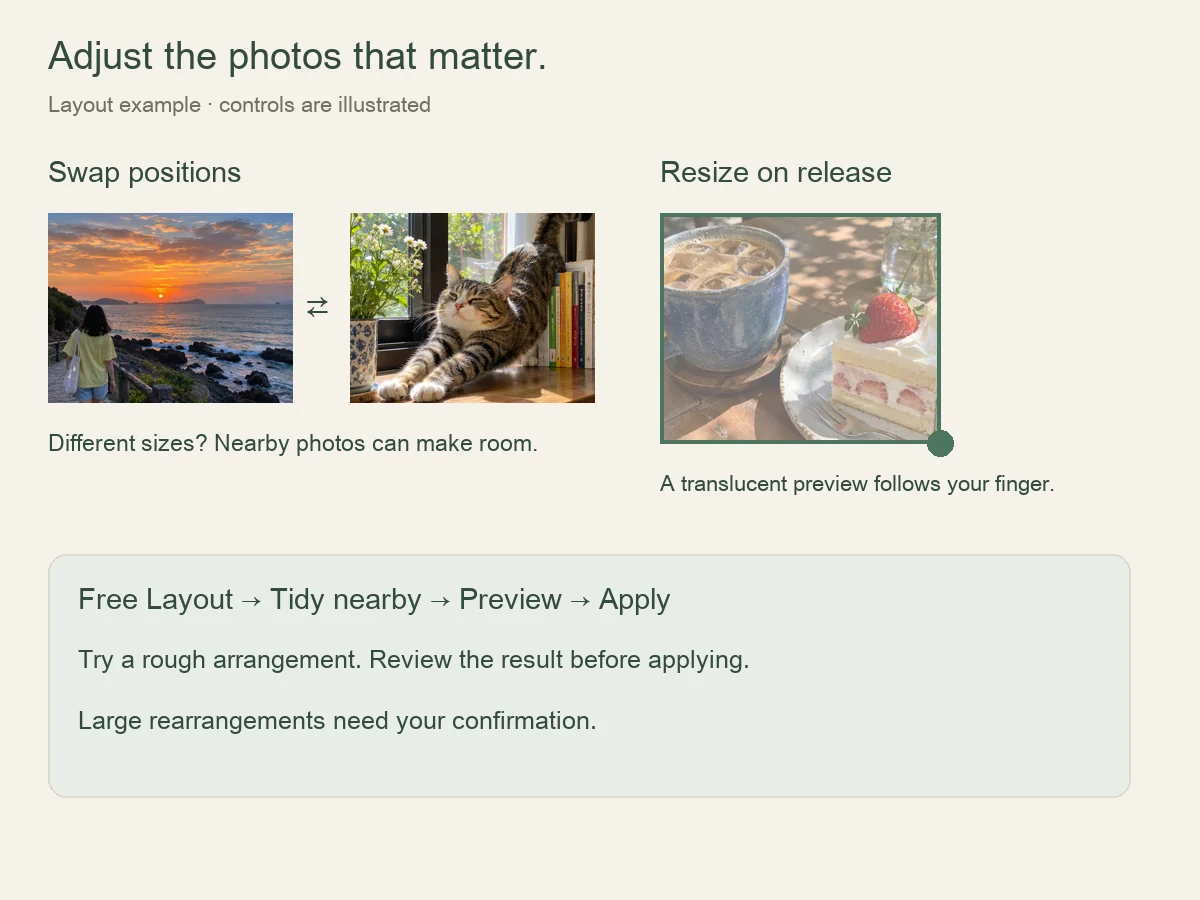
Drag a photo onto another to swap their positions. Drag a corner to resize: the translucent preview follows your finger, and the change is applied when you lift it. Small conflicts can be resolved locally; a larger rearrangement is shown for confirmation. Shrinking a photo leaves the space available instead of enlarging all the others. Touch and hold a photo for Adjust Photo, Replace Photo, or Delete Photo. Background removal is inside Adjust Photo.
Free Layout lets you try positions with overlapping photos. Use Tidy nearby to preview a non-overlapping arrangement near those positions. Apply it if the result works for you. Photos that still overlap cannot be exported. Undo is available when you want to step back.
Reuse a layout without redoing every photo
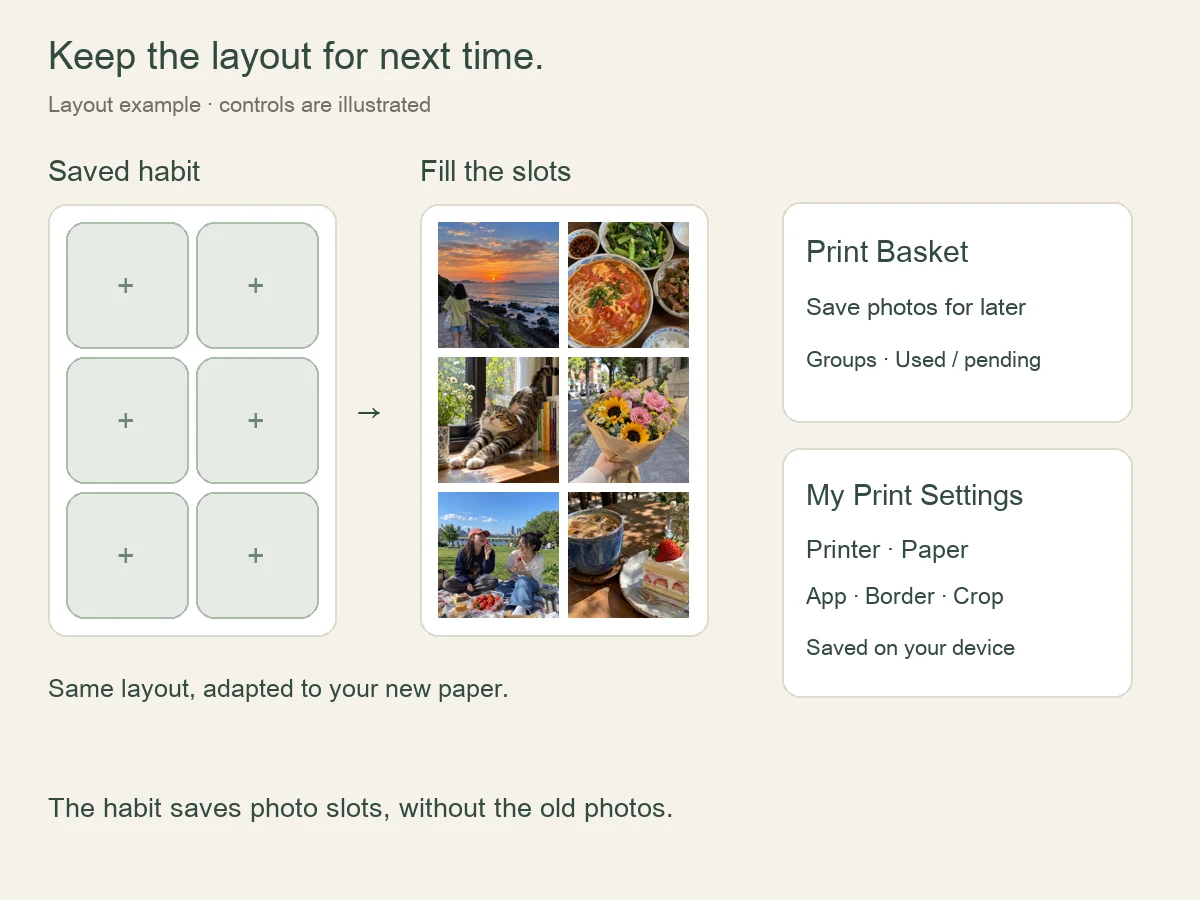
Save an arrangement as a Layout Habit. Its thumbnail shows the layout; starting from it creates empty photo slots, adapted to the new paper’s safe area and spacing. Tap a slot to choose its photo, or import a batch to fill the slots in order. Importing more photos than the available slots shows a new layout preview before you decide to apply it. Unfilled slots do not print. Use the habit’s ⋯ menu → Delete Layout Habit to remove it; existing photo sheets are kept.
The Print Basket holds photos you want to print later, with groups and used/not-yet-used records. My Print Settings stores your printer, paper or other supplies, printer app, and border/crop preferences. Reuse the relevant setup when starting another sheet. These are saved locally; JournalPrint does not connect to or configure a printer on your behalf.
Safe area, photo gaps, and white borders
The safe area is the space reserved around the outer edge of the sheet. The photo gap separates neighboring photos for cutting. A white photo border sits inside each photo’s frame and appears in the exported image. These have different effects: increasing a safe area or gap leaves less usable paper, while a photo border reduces the image area within its existing frame.
Save the sheet, then check your printer app
Export as JPEG or PNG to save a complete sheet to Photos or Files, or export a PDF for a print shop or document printer. Multi-page layouts produce one image per populated page. Low-resolution warnings identify affected photos: use a better source or a smaller printed size, or explicitly accept the lower quality. Exporting at 300 ppi does not add detail that is missing from the original.
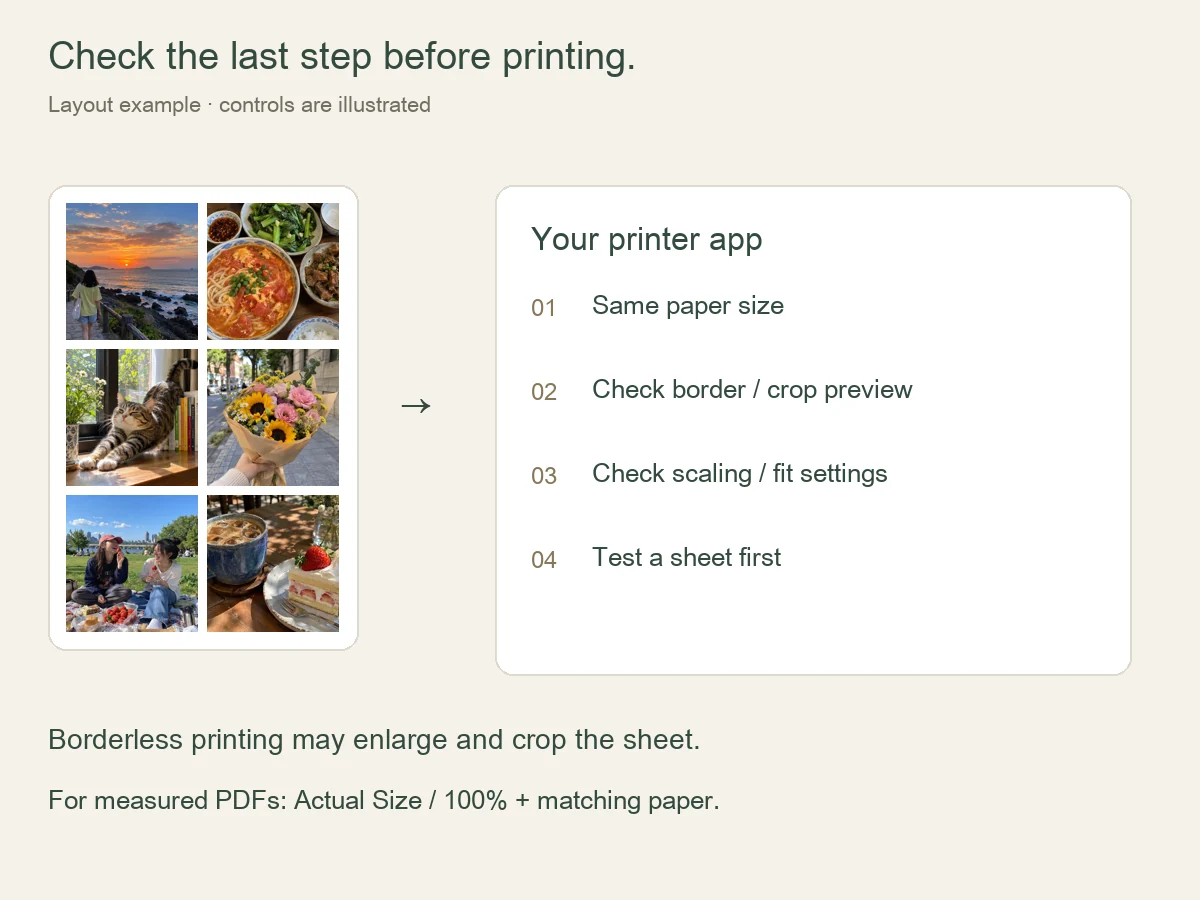
In the printer app, select the same paper size and inspect the final crop preview. Borderless printing can enlarge and trim the edges; borders, fit-to-paper, and scaling options differ by printer and app. Match the settings saved in your print setup and check a test sheet before using important supplies. JournalPrint cannot guarantee the exact physical size after another app or printer rescales the image.
For a PDF that must keep measured sizes, choose Actual Size / 100%, turn off automatic Fit to Page scaling, and match the PDF’s paper size. Use print calibration and a physical ruler to check the result. Do not follow a blanket “always choose borderless” rule.
Paper Sizes: work to measured dimensions
In Paper Sizes, create a specification using the actual width and height of a single paper page and confirm those dimensions before saving. Open a blank layout or a reusable template, import photos, then arrange them at their intended physical sizes. The print PDF contains the photos; the scanned page background and reserved physical-item regions are not printed. Layout History keeps your saved tasks so you can continue later.
To continue a partly finished paper page, photograph or select it, align its four corners, and check dimensions and detected content. AR is an estimate: verify with a ruler and correct the dimensions when needed. The ±5 mm matching tolerance for each axis is a matching rule, not a measurement-accuracy promise. Remove incorrect regions or add missing ones before applying.
Language and accessibility
Settings → App Language offers system language, Simplified Chinese, Traditional Chinese, English, Japanese, and Korean. The website language switch changes these pages only. Larger system text and the app’s appearance settings can help readability on iPhone and iPad.
Storage, deletion, and backups
Photos, print setups, layout habits, and tasks stay on your device; there is no automatic cross-device library sync. Recently Deleted items still use space. Export important ZIP backups to a location outside the app before uninstalling or changing devices. In Photo Sheets, the top-right ⋯ menu provides Back Up All Sheets and Restore Sheet Backup. Paper-size layouts have task backup/restore in Layout History. These two backup types serve different workflows.
Clear Cache removes rebuildable files, not original photos or saved layouts. Deleting a layout habit does not delete existing sheets; deleting a sheet is a separate action. The app cannot remove images, PDFs, or ZIP files you have already saved outside it.
Need help?
Email zgzdoit@163.com with your device model, system version, app version/build, steps to reproduce, and what you expected to happen. A screenshot or short screen recording helps. Hide names, ticket numbers, and private photos before sending. For a printing issue, include your printer, paper, printer app, and border/crop settings. Please back up important work before uninstalling during troubleshooting.